As part of NoahFace's commitment to privacy and transparency, workers are required to consent to the use of facial recognition by accepting a privacy statement during registration.
The language used in the privacy statement is designed to be simple and transparent, while addressing the requirements of privacy regulations in various jurisdictions around the world.

The exact language used in the privacy statement will vary depending on your configuration. For example, if you configure NoahFace to disable the capture of photographs, the language will not reference photos.
If you want to extend the standard language in the privacy statement, just specify the "privacy" option in your screen details. For example:

If you want to completely replace the standard language in the privacy statement, just specify the "consent" option in your screen details. For example:

If you are using extended or custom language in your privacy statement, you can format your text using unicode. This allows you to include:
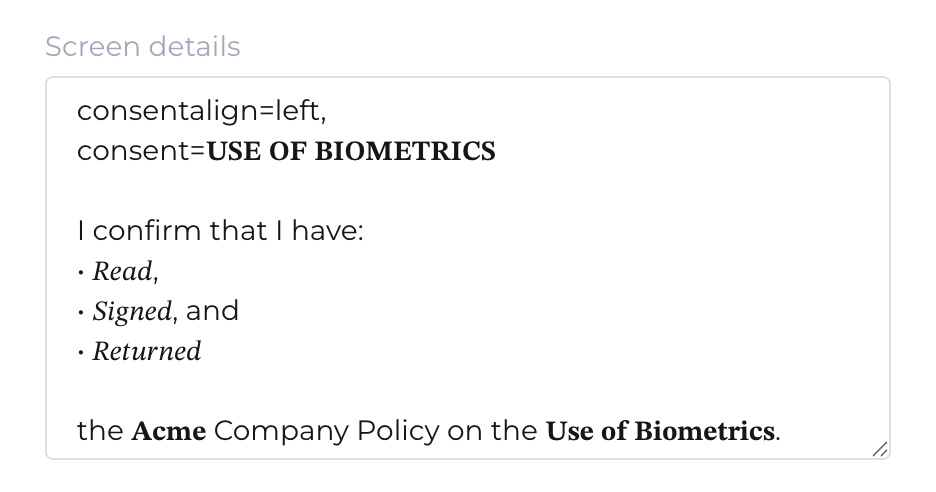
To do this, just edit your language in an online unicode editor and cut/paste it into your screen details. You can also left or right align your privacy statement by specifying the "consentalign" option in your screen details (alignment requires version 26.15 or later of the NoahFace App). For example:
The button labels can be configured by specifying the "accept" and/or "decline" options in your screen details. You can also hide the decline button (and rely on the cancel button) by specifying the "hidedec" option in your screen details. For example:

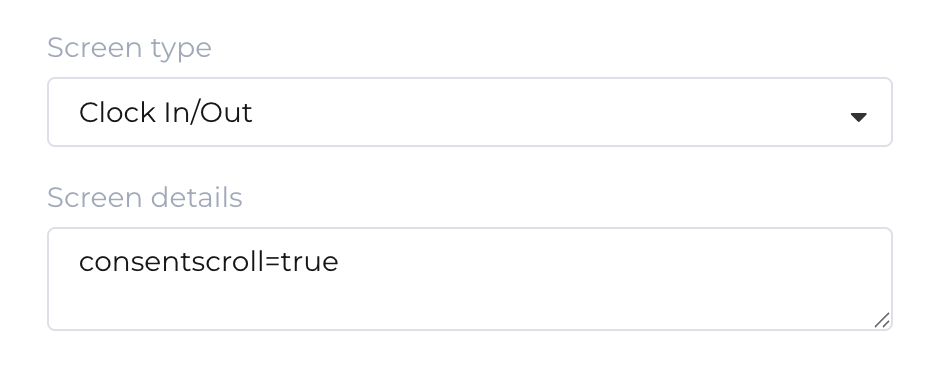
If your privacy statement is long, you can choose to disable the Accept/Decline buttons initially and only enable them when users scroll to the bottom of the statement. This is done by specifying the "consentscroll" option in your screen details (this requires version 26.15 or later of the NoahFace App). For example:
If you want to generate a list of workers who have consented or not consented, just select the corresponding option from the search filters on the Users page of the NoahFace Dashboard:

The date and time that each worker consents is captured against their user record, which can be viewed on their User Details page in the NoahFace Dashboard. If a worker ever withdraws their consent, it can removed by pressing the delete icon next to the consent date and time. For example:

As part of NoahFace's commitment to privacy and transparency, NoahFace ensures that withdrawing consent to use facial recognition is as easy as granting it.
When a worker's consent is removed, NoahFace will delete:
It will not delete any past events - these can be deleted from the Events page or by deleting the User altogether.
Workers can remove their consent to use facial recognition at any time in the NoahFace App by pressing the facial recognition icon and selecting "Remove Consent":

Managers can also remove a worker's consent to use facial recognition (on their behalf) from the NoahFace Dashboard. To do this, view their User Details page and press the Remove button next to their Consent date/time: