The Clock In/Out screen has two buttons as follows:
The text on the buttons can be changed by specifying the "in" and "out" options in the screen details. For example:
in=Start Shift, out=End Shift
The buttons can be further configured to allow you to collect data during your clock in and clock out events, using the following syntax:
in/out = <button>:<type>:<label>:<details>
where <button> is the button text, <type> is the type of data you want to capture , <label> is the name of the data field, and <details> are the type specific details.
While all data types can be used at either Clock In or Clock Out, the following data types are typically used at Clock In:
And the following data types are typically used at Clock Out:
Each of these data types is explained in more detail below.
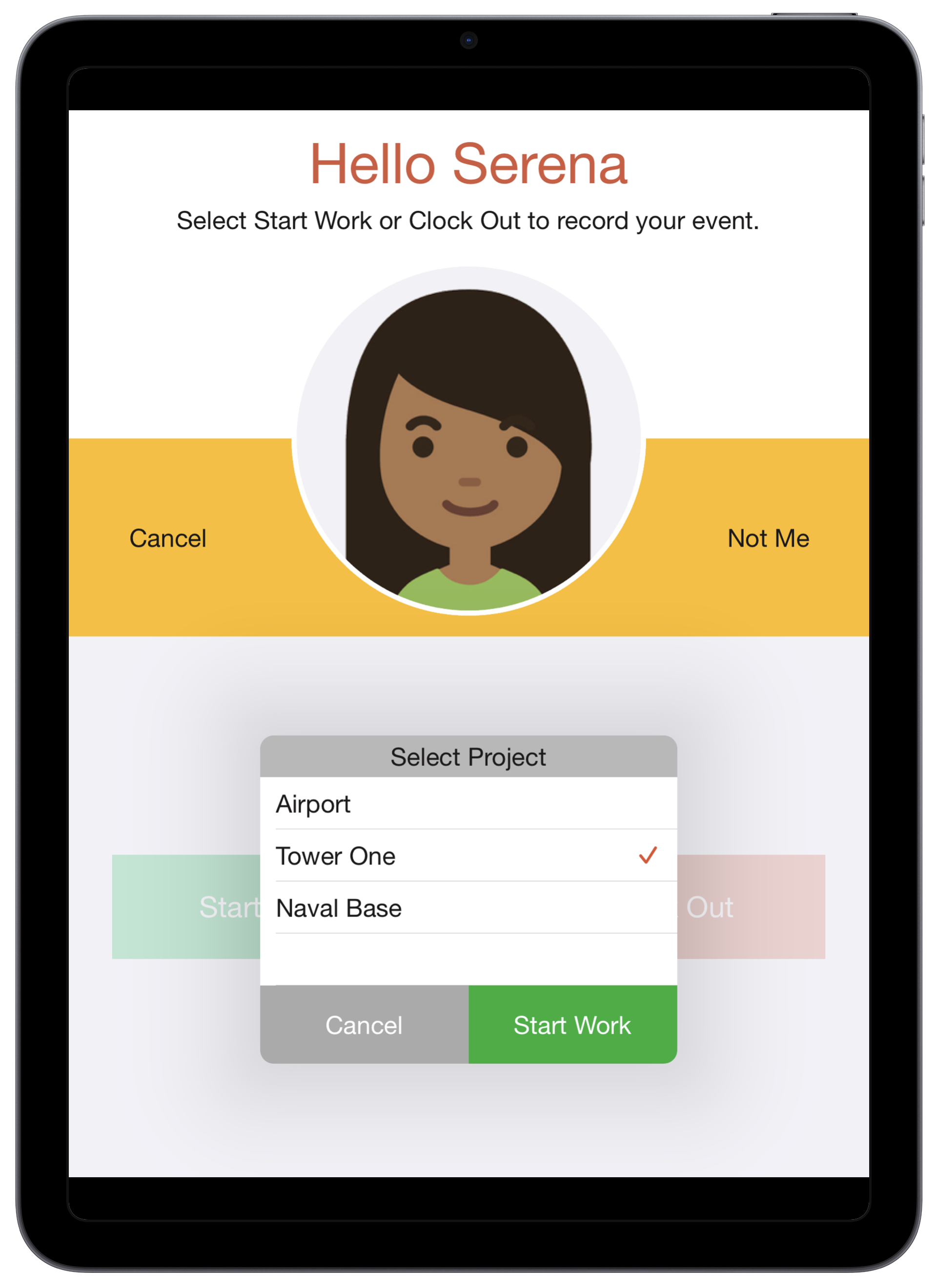
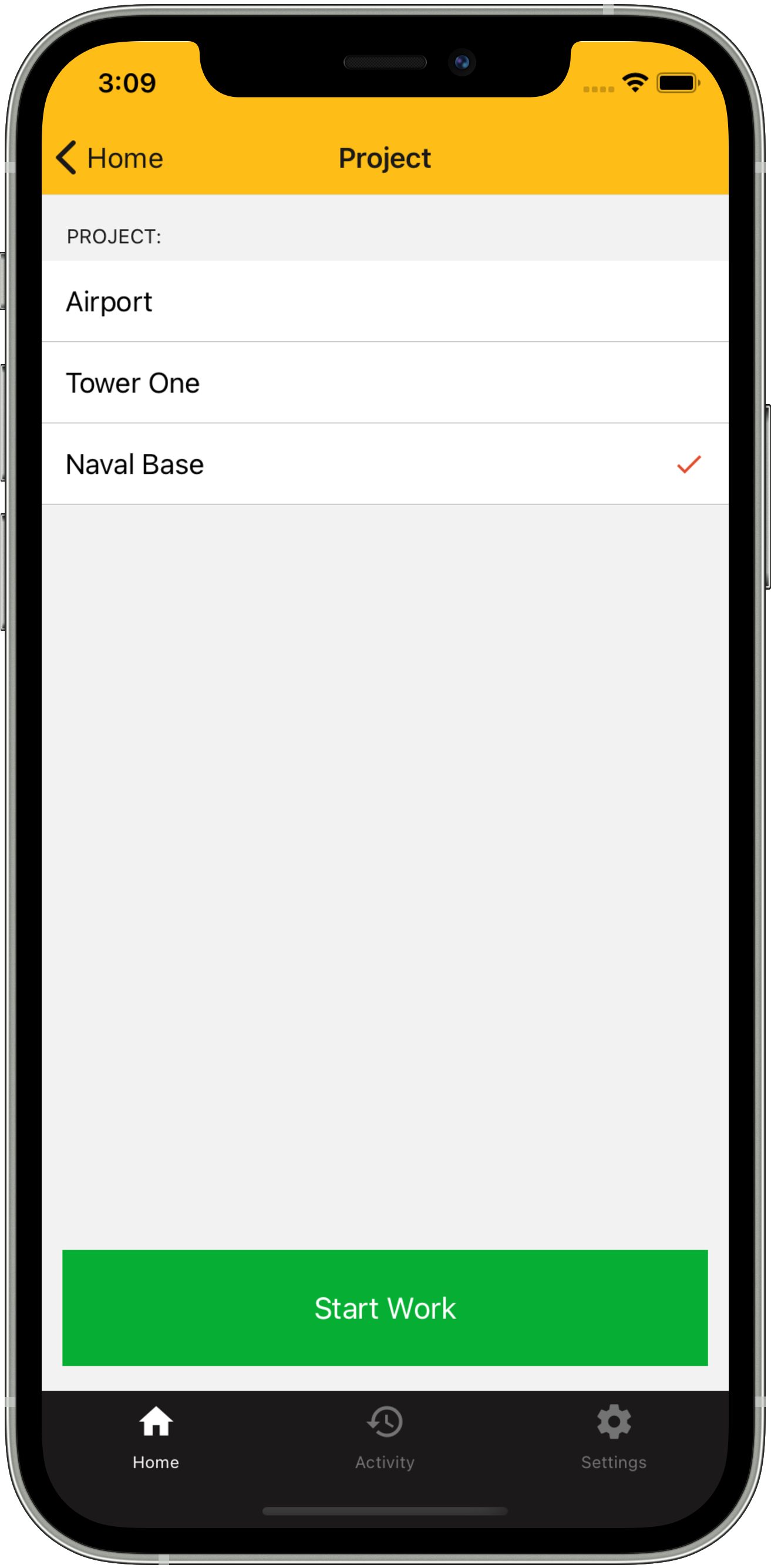
A data type of "list" is used to capture a selection from a list, such as a list of active projects. The "in" or "out" option should be configured with the following colon separated components:
For example:
in=Start:list:Project:Airport;Tower One;Naval Base:Tower One
If you are synchronising your users with a system that supports global lists, you can specify your list values by providing the appropriate list number. For example:
in=Start:list:Project:$1
In the NoahFace iPad App, you can optionally filter the list to only include items that contain the current site name by specifying the "sitelist" option. For example:
in=Start Work:list:Position:$1, sitelist=true

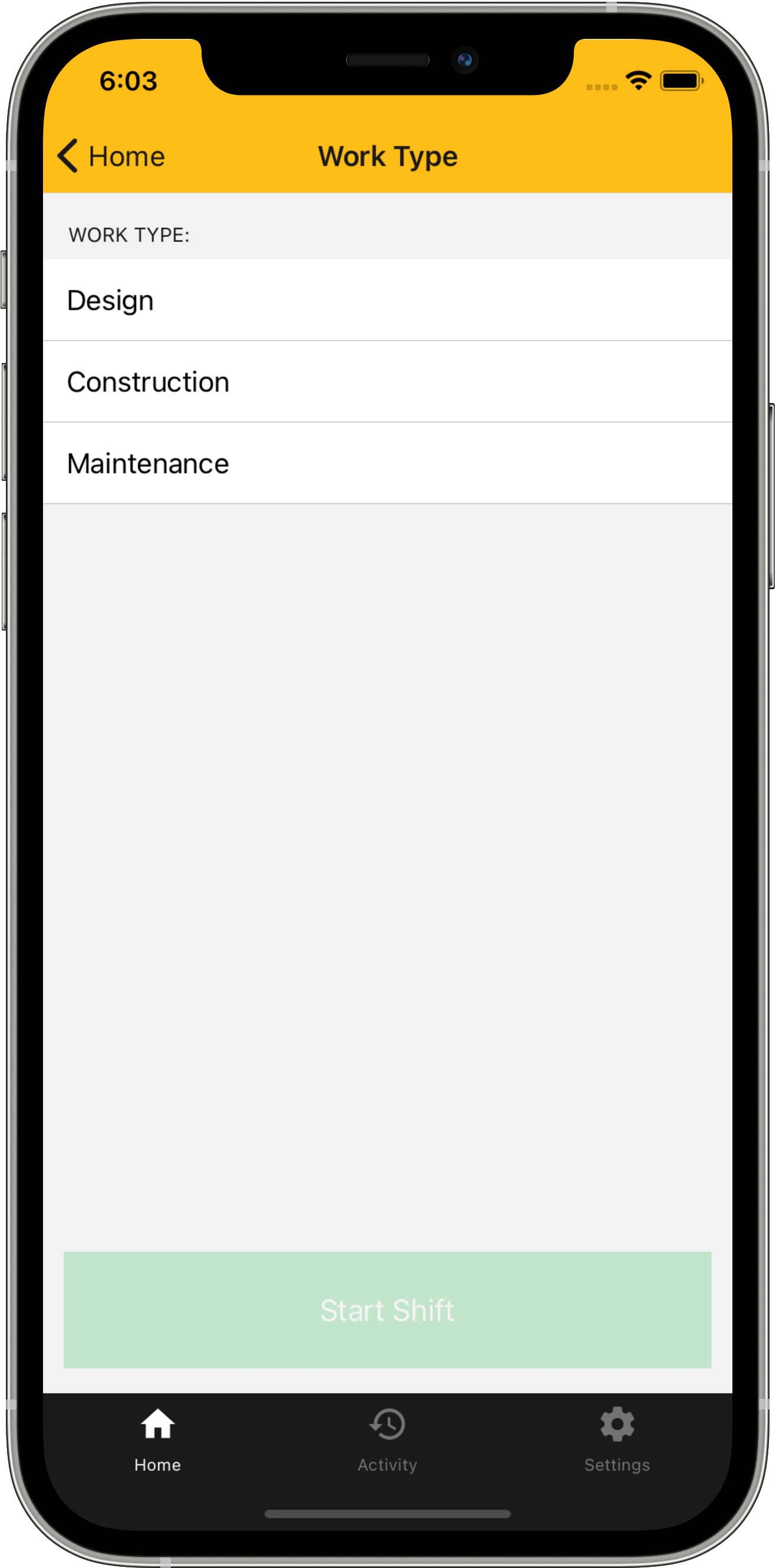
A data type of "dual" is used to capture values from two different lists, such as a project name and a work type. The "in" option should be configured with the following colon separated components:
For example:
in=Start Shift:dual:Project:Work Type:Airport;Tower One;Naval Base:Design;Construction;Maintenance:Airport
If you are synchronising your users with a system that supports global lists, you can specify your list values by providing the appropriate list numbers. For example:
in=Start:dual:Project:Work Type:$1:$2
In the NoahFace iPad App, you can optionally filter the first list to only include items that contain the current site name by specifying the "sitelist" option. For example:
in=Start Work:dual:Position:Time Entry Code:$1:$2,
sitelist=true
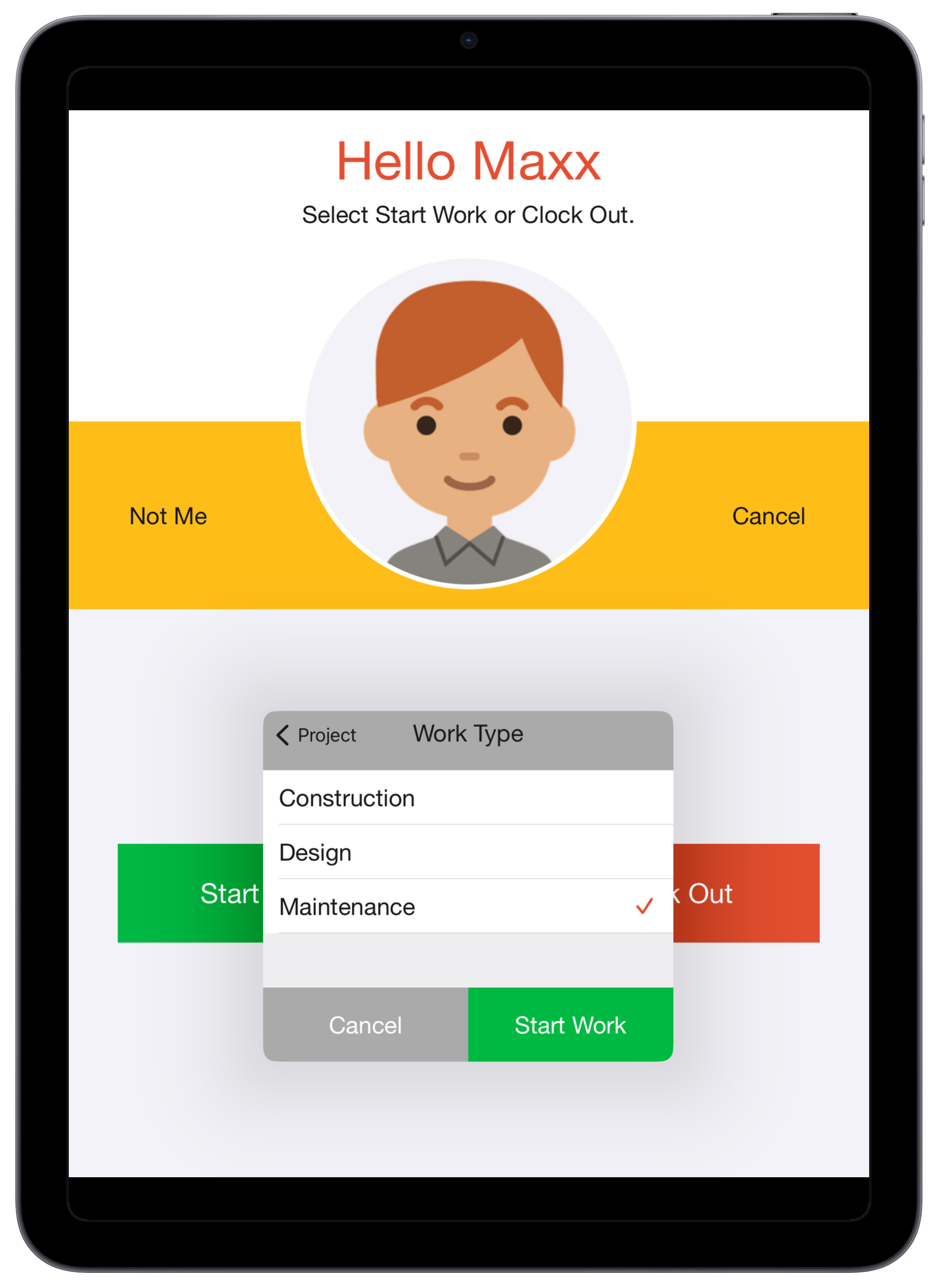
In the NoahFace iPad App, the two lists are presented vertically, one above the the other. In the NoahFace Go mobile App, the two lists are presented one at a time.
A data type of "nest" is used to capture values from two different lists, such as a project name and a work type, when the list of work types varies for each project. The "in" option should be configured with the following colon separated components:
Then, for each value in the first list, you separtely define the values in the second list with the following colon separated components:
Each of the second lists is defined by the option "list1", "list2", etc, in the order of the options in the first list. For example:
in=Start Shift:nest:Project:Airport;Tower One;Naval Base,
list1=Work Type:Design;Construction;Maintenance,
list2=Work Type:Maintenance:Maintenance,
out=End Shift
If you are synchronising your users with a system that supports global lists, and your list is hierarchical, you can specify your list values by providing the appropriate list number. For example:
in=Start Shift:nest:Work Type:$4
In the NoahFace iPad App, the two lists are presented vertically, one above the the other. In the NoahFace Go mobile App, the two lists are presented one at a time.
A data type of "tree" is used to capture values from a hierarchical list, such as a list of cost centers. Each level of the hierarchy is selected independently (one after the other), and searching is supported when a level has a large number of options. The "in" option should be configured with the following colon separated components:
For example, if your tree has two levels representing a Project and a Work Type:
in=Start Work:tree:Project;Work Type:$1
And if you wanted to default the Work Type and capture the Project:
in=Start Work:tree:Project;Work Type:$1:Maintenance::true
A data type of "type" is used to capture a selection from a list, such as a list of work types, where the list of available options varies by user type.
Local Lists: The "in" option should be configured with the following colon separated components:
For each user type that you want to have a different list of options, you can specify:
For example:
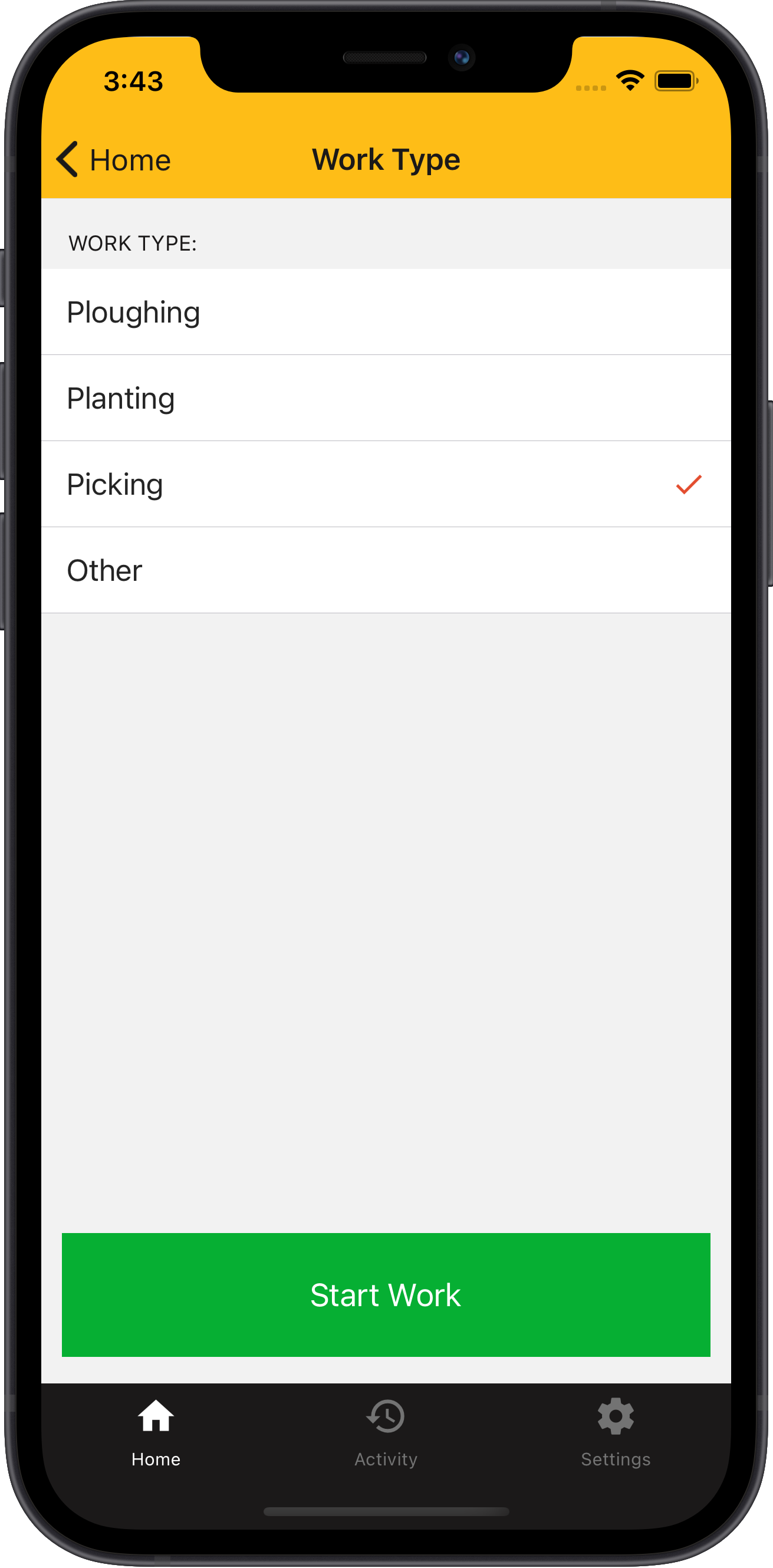
in=Start Work:type:Work Type:General,
Maintenance=Work Type:Fencing;Buildings;Machinery,
Farm Hand=Work Type:Ploughing;Planting;Picking;Other
In this example, users with a user type of Maintenance will get to select from: Fencing, Buildings, or Machinery; users with a user type of Farm Hand will get to select from: Ploughing, Planting, Picking, or Other, and users with any other user type will only have one option to select from: General.
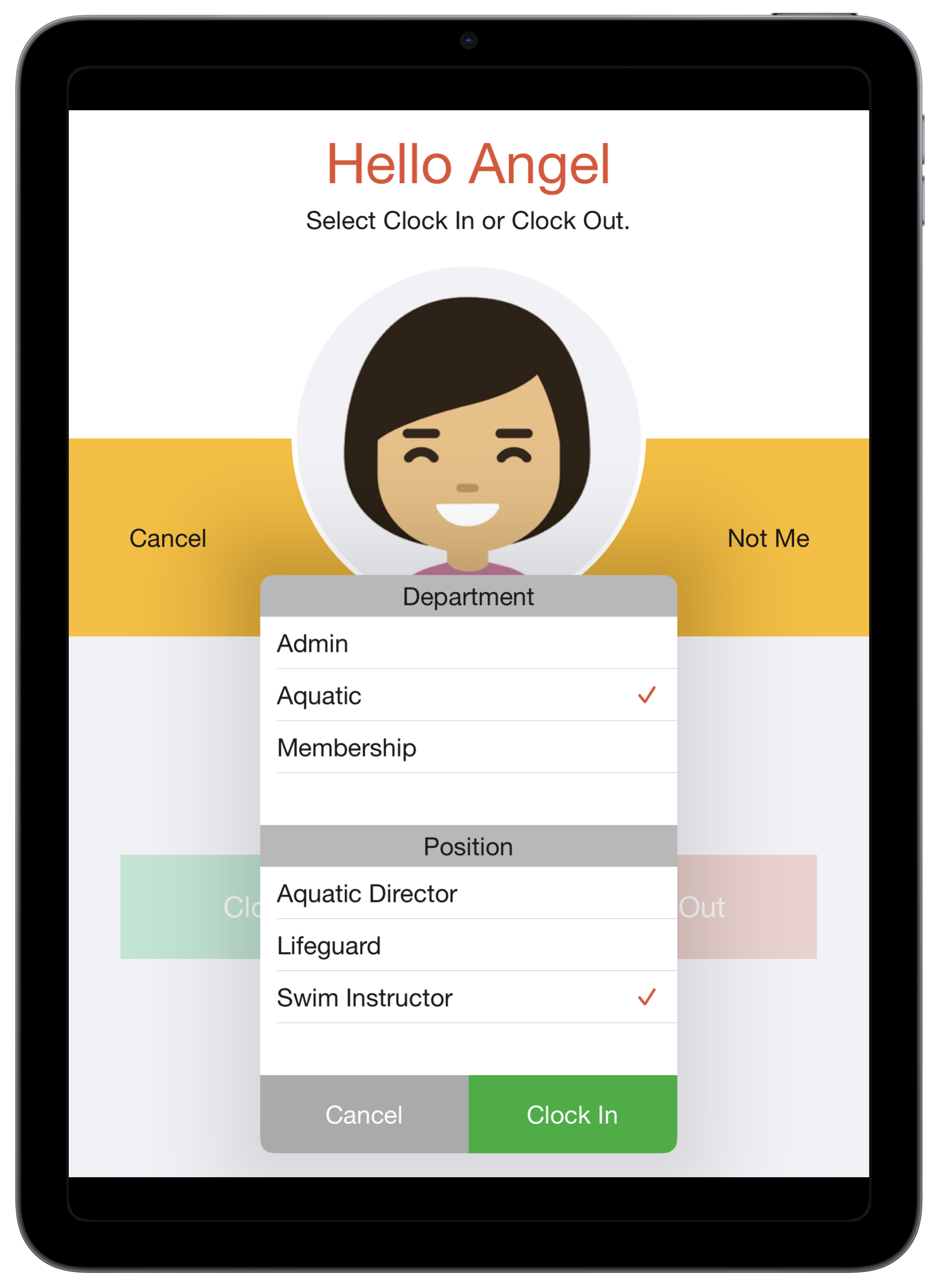
Global Lists: A data type of "type" can be used when a hierarchical selection list is maintained in a workforce management platform, and the top level of the hierarchy is the type. NoahFace filters the selection list so that only the options that correspond to the user's type are displayed, simplifying the user experience. If there is only one option available for the type, it will be automatically selected.The "in" option should be configured with the following colon separated components:
For example:
in=Clock In:type:Department;Position:$1:false
A data type of "site" is intended to be used when a hierarchical selection list is maintained in a workforce management platform, and the top level of the hierarchy is the site. NoahFace filters the selection list so that only the options that correspond to the current site are displayed, simplifying the user experience. If there is only one option available to a user at the site, it will be automatically selected.
In the NoahFace Go mobile App, the site is determined automatically using their geolocation. This means that location capture must be set to either "Mapped" or "Fenced" in order to use site lists.
The "in" option should be configured with the following colon separated components:
For example:
in=Clock In:site:Department;Position:$1:false
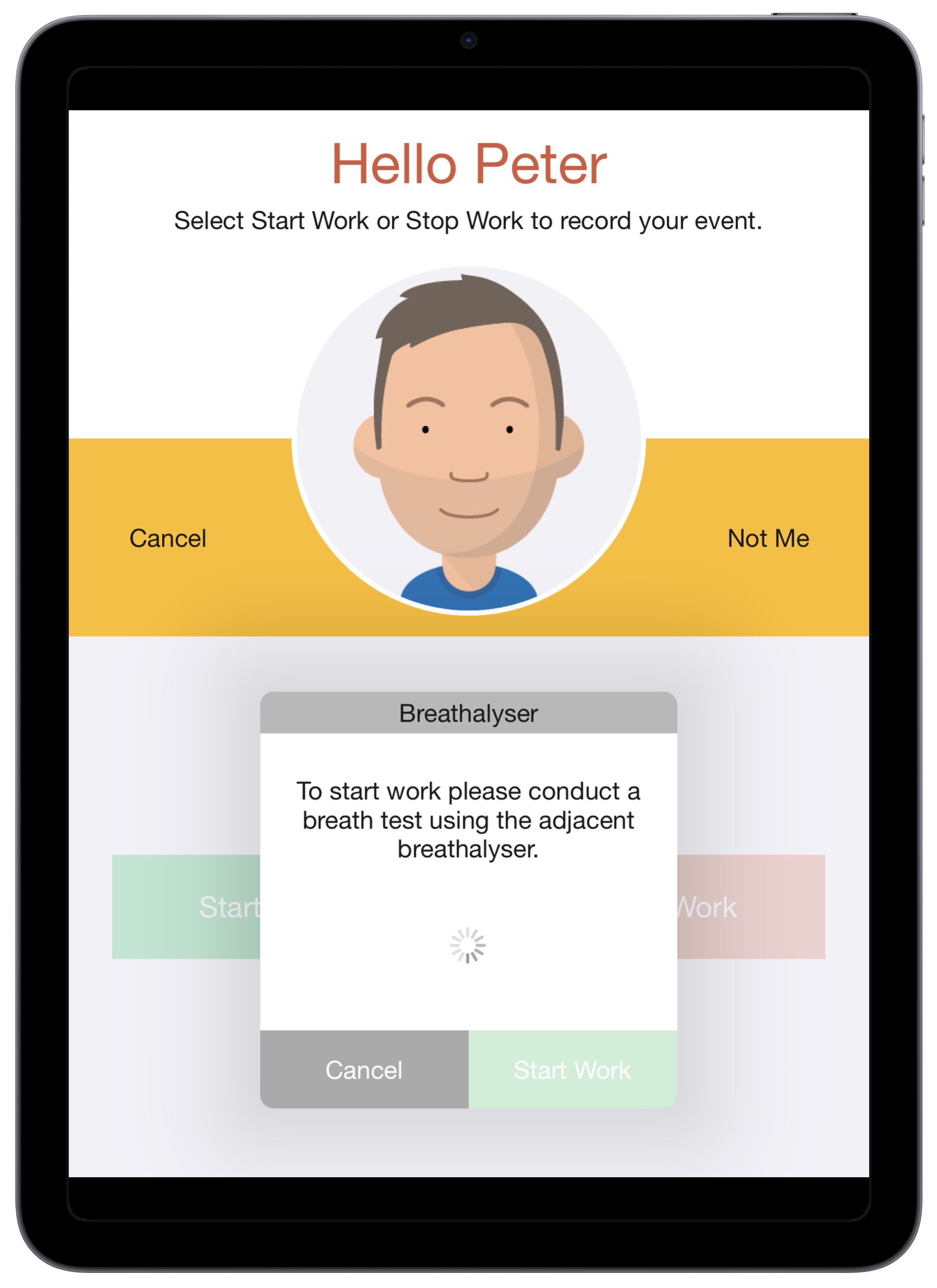
A data type of "api" is used to capture a value from an external system, such as a blood alcohol reading from a breathalyser. It is only supported in the NoahFace iPad App. The "in" option should be configured with the following colon separated components:
Your URL will be passed query parameters containing information on the user (eg: firstname, lastname, etc) and the environment (eg: org, site, etc), and is expected to return an HTTP status of either:
Your response body is expected to contain your value (eg: the blood alcohol reading). If you return an error, you can optionally return additional details by setting the field X-NOAHFACE-MESSAGE in your response header.
For example:
in=Start Work:api:Breathalyser:To start work please conduct a breath test using the adjacent breathalyser.:deny:120:http://192.254.1.100/breathtest, out=Stop Work
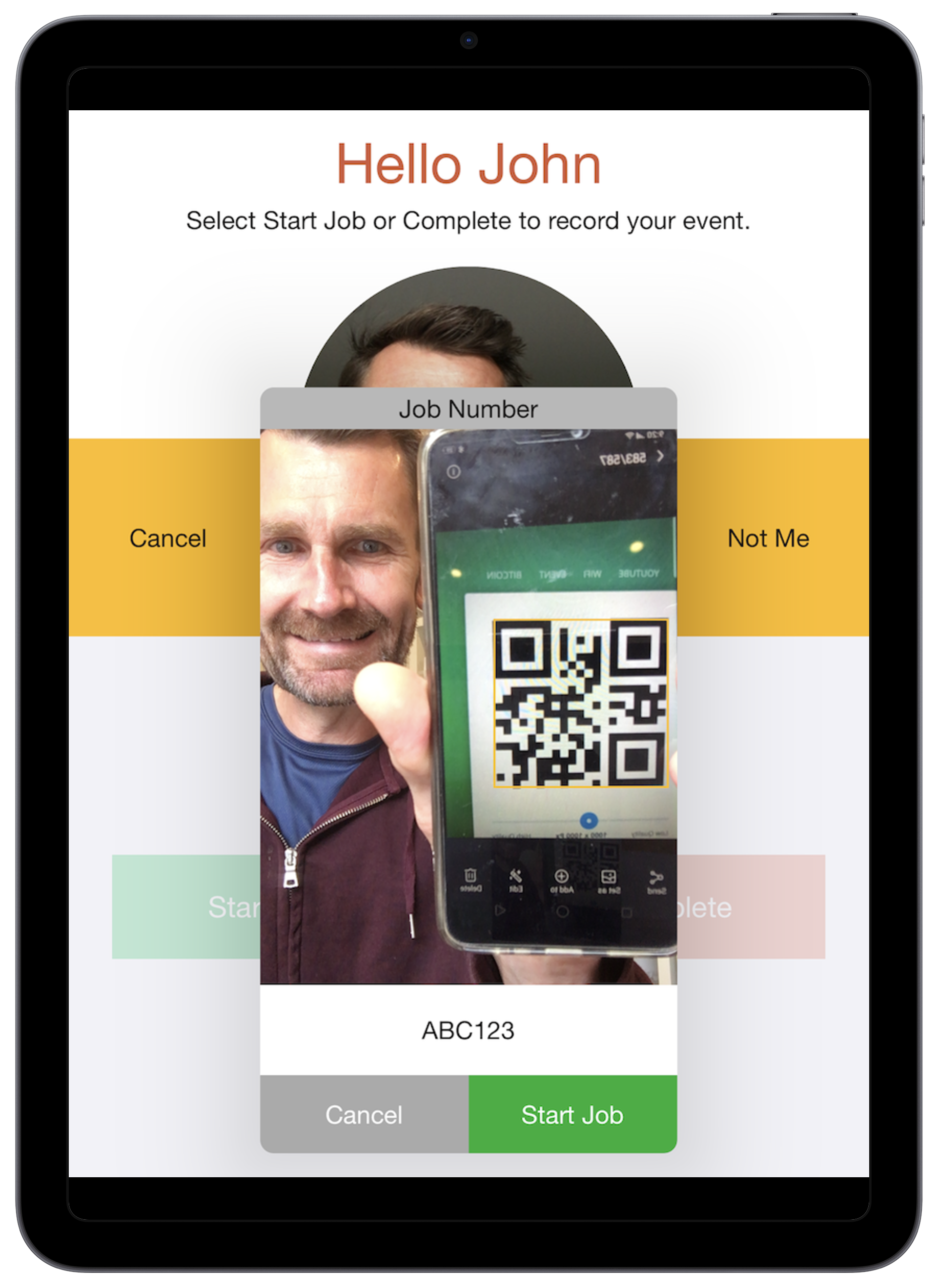
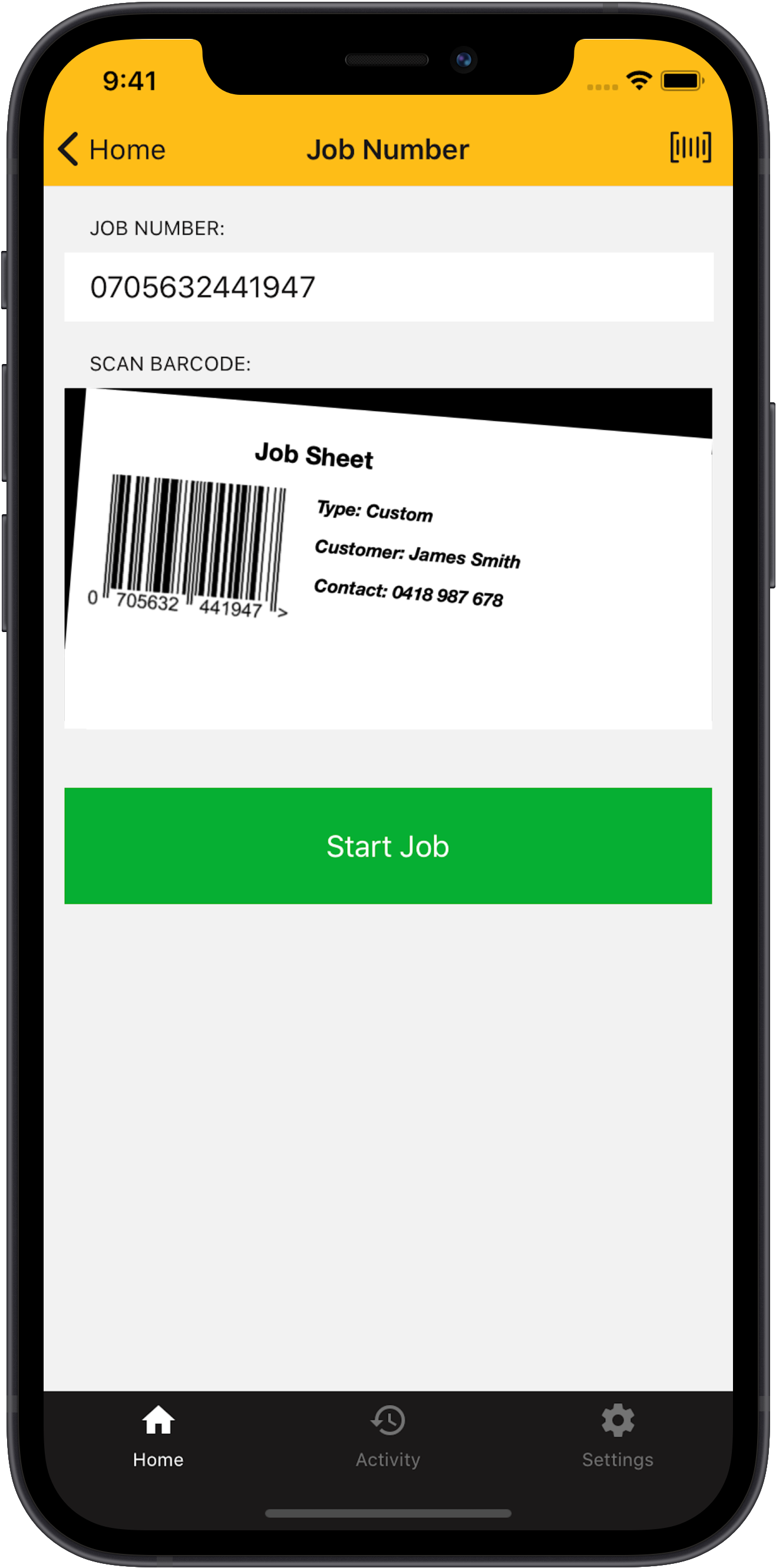
A data type of "scan" is used to capture a value from a barcode or QR code. The "in" option should be configured with the following colon separated components:
Barcodes must be large and clear to be read by the limited resolution of the front facing iPad camera. The following types of barcode are supported:
Only alpha and numeric values are supported, up to 40 characters in length.
For example:
in=Start Job:scan:Job Number:Please scan your job sheet., out=Complete
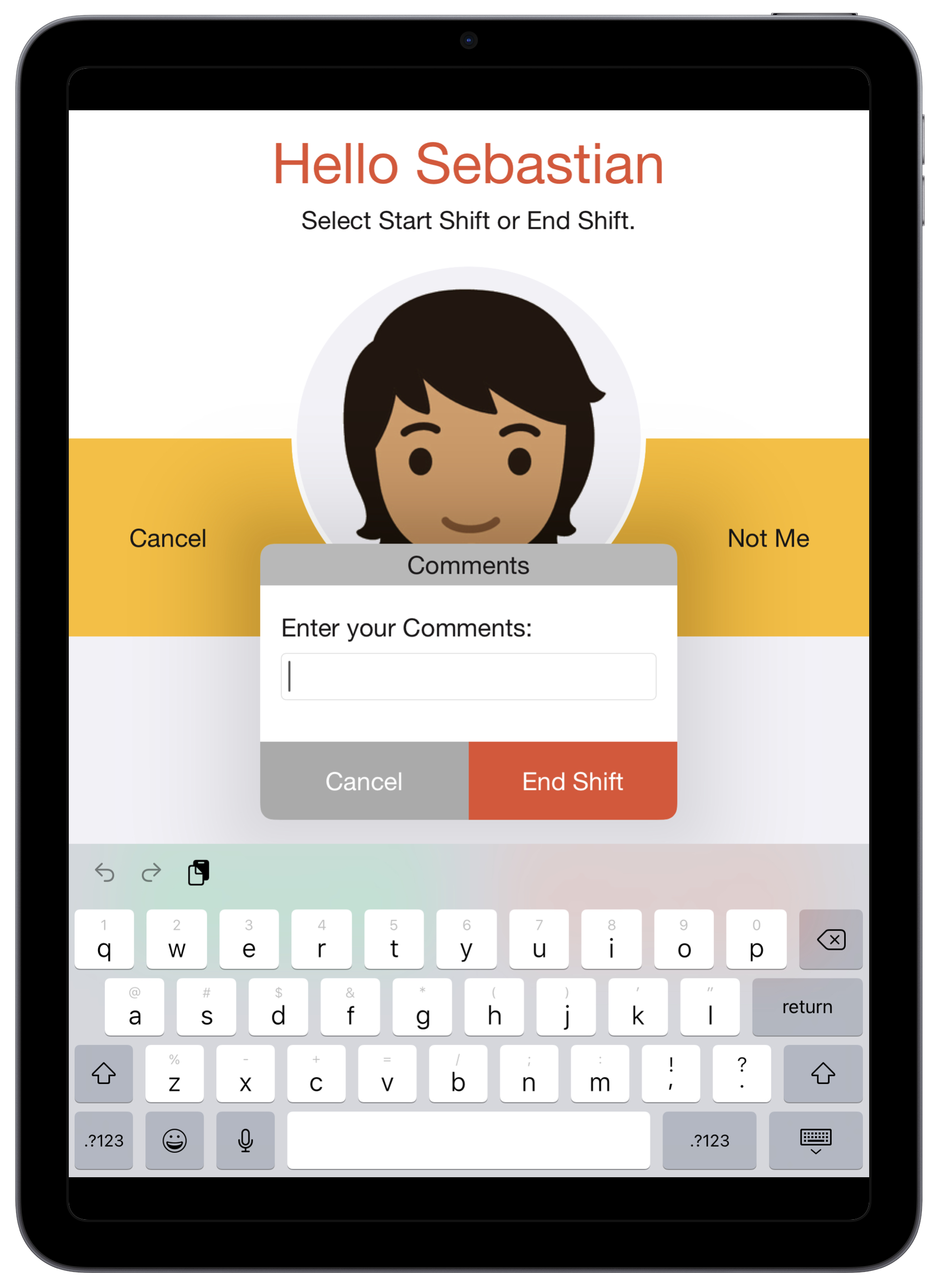
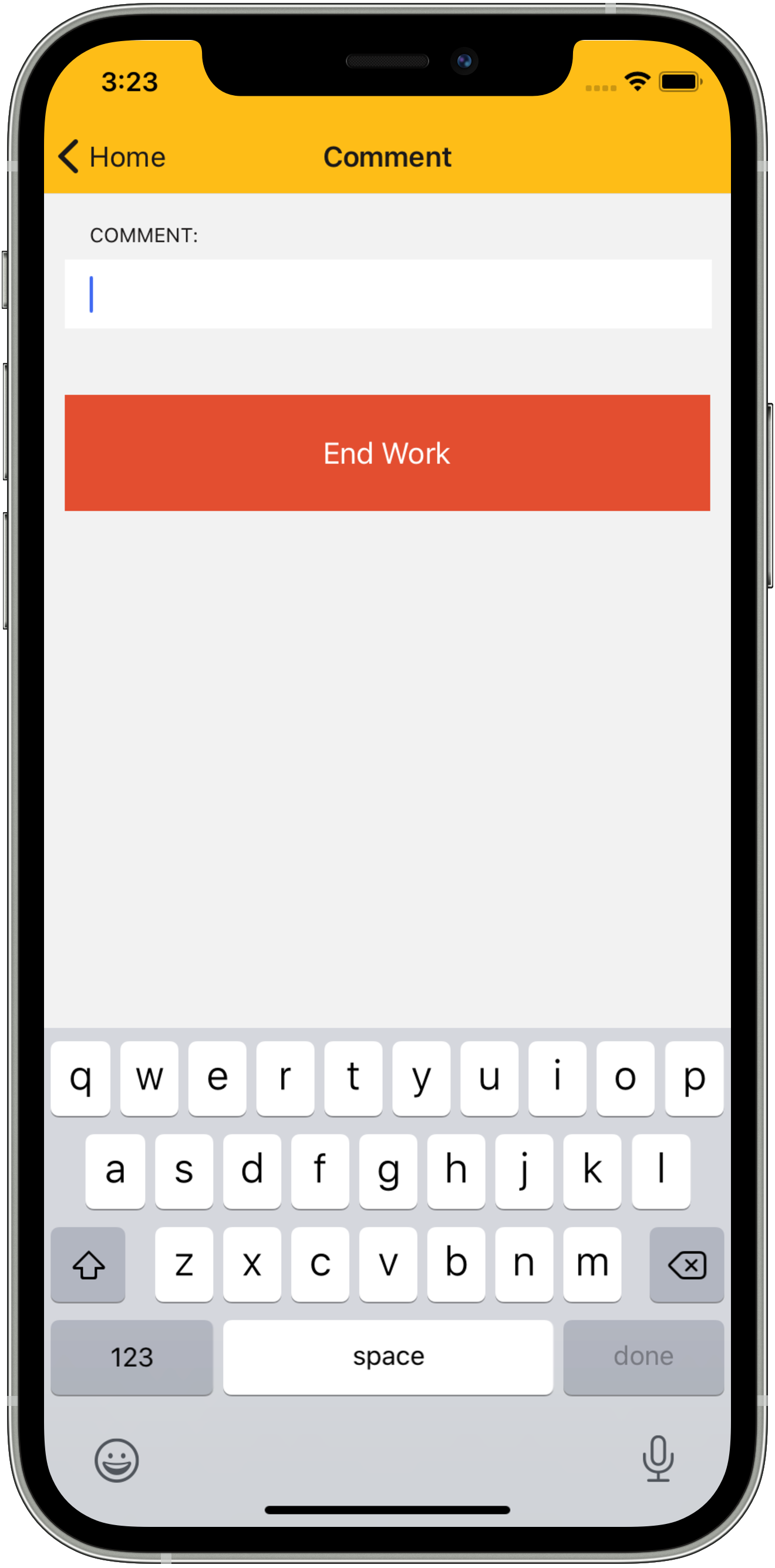
A data type of "text" is used to capture an alphanumeric string, such as comments at the end of shifts. The "in" or "out" option should be configured with the following colon separated components:
Validation rules can be expressed as either:
For example, to capture comments at the end of a shift, use:
out=End Shift:text:Comments
And to capture 4 to 6 character job numbers using a barcode gun, validated against a global list of job numbers, use:
in=Start Job:text:Job Number:4:6:numeric:$1
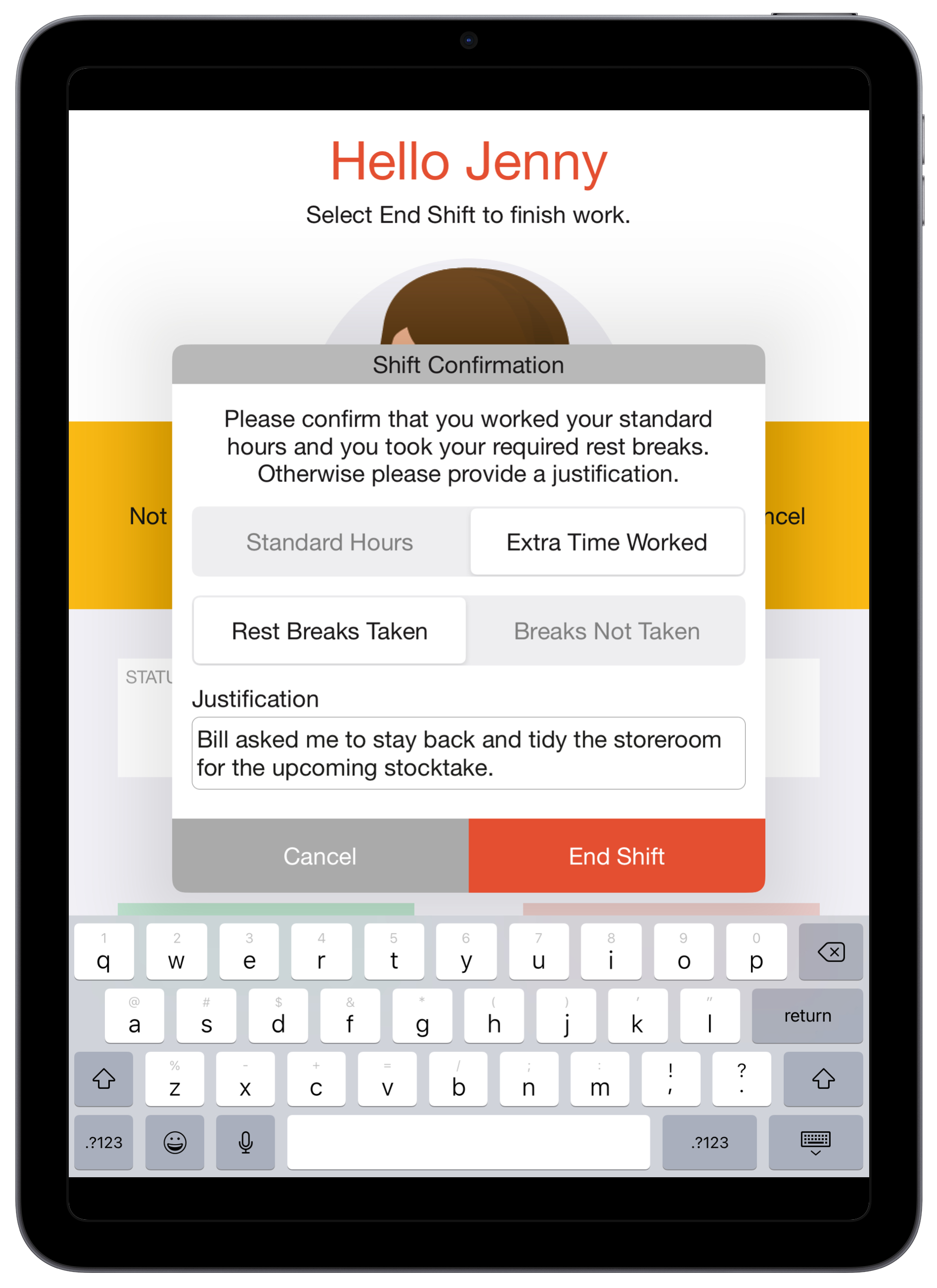
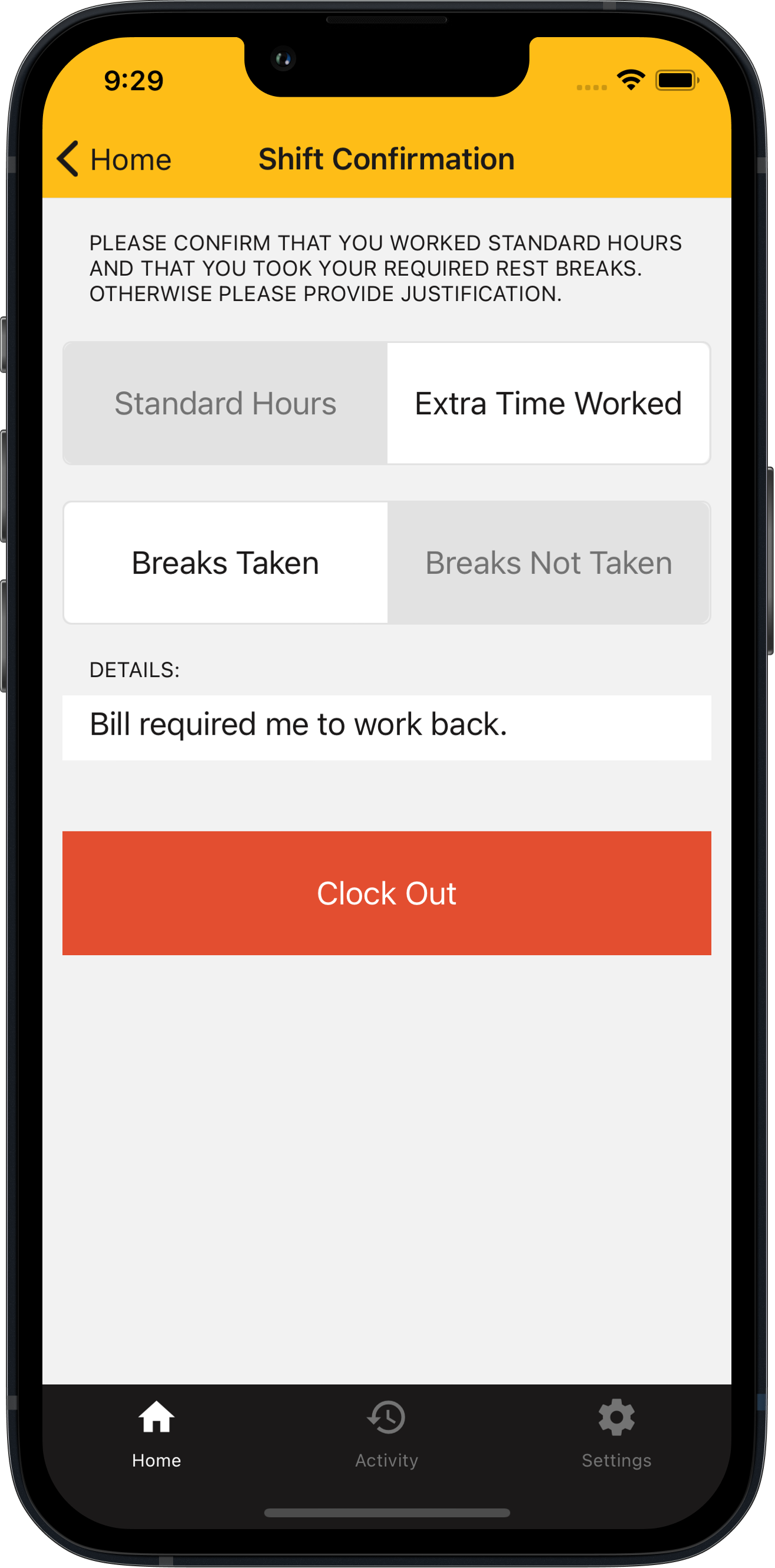
A data type of "select" is used to capture two-option attestations at the end of a shift. The "out" option should be configured with the following colon separated components:
For example:
out=End Shift:select:Shift Confirmation:Please confirm that you worked your standard hours and you took your required rest breaks. Otherwise please provide a justification.:negative:Justification:Standard Hours:Extra Time Worked:Rest Breaks Taken:Breaks Not Taken:none
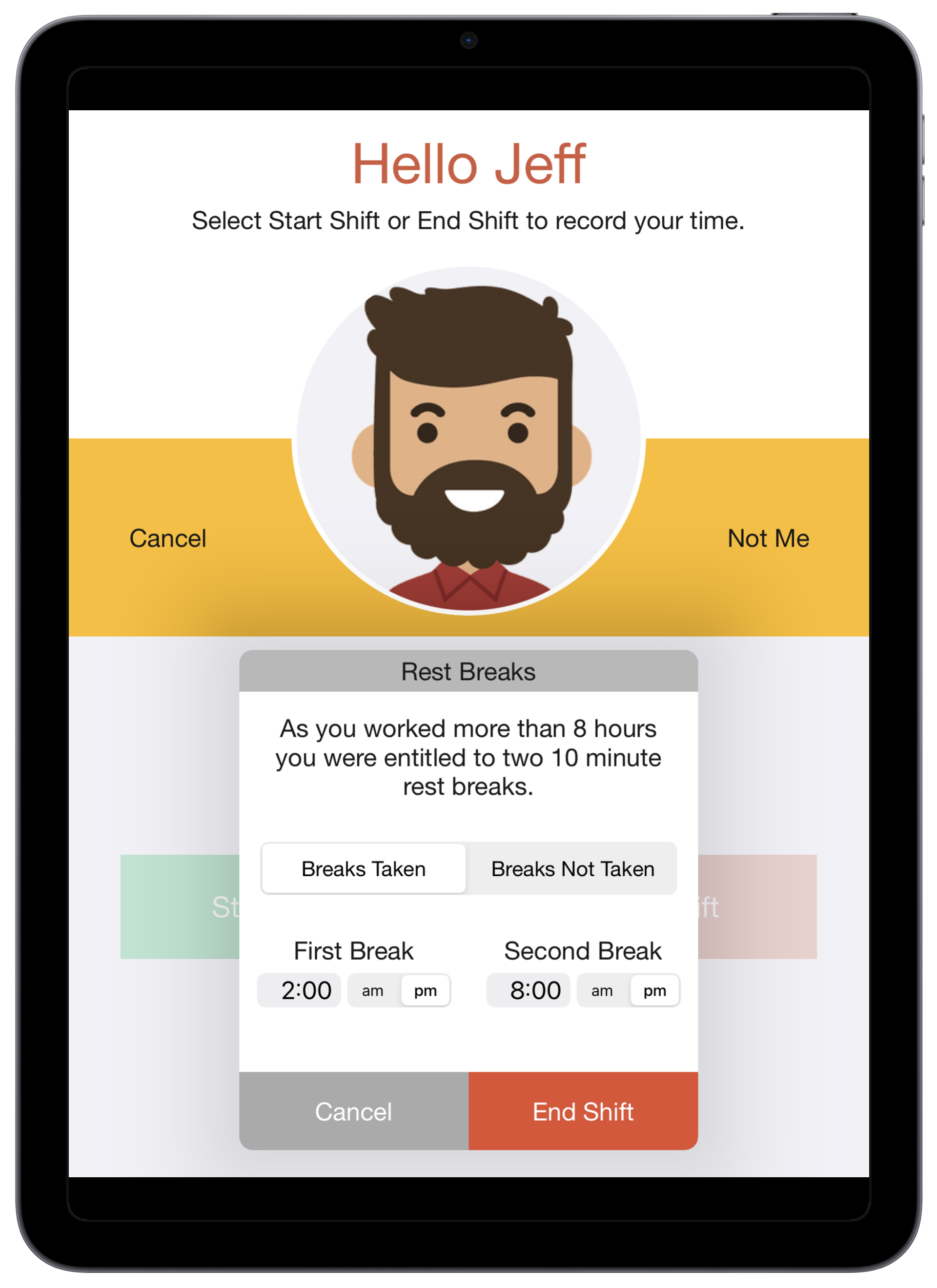
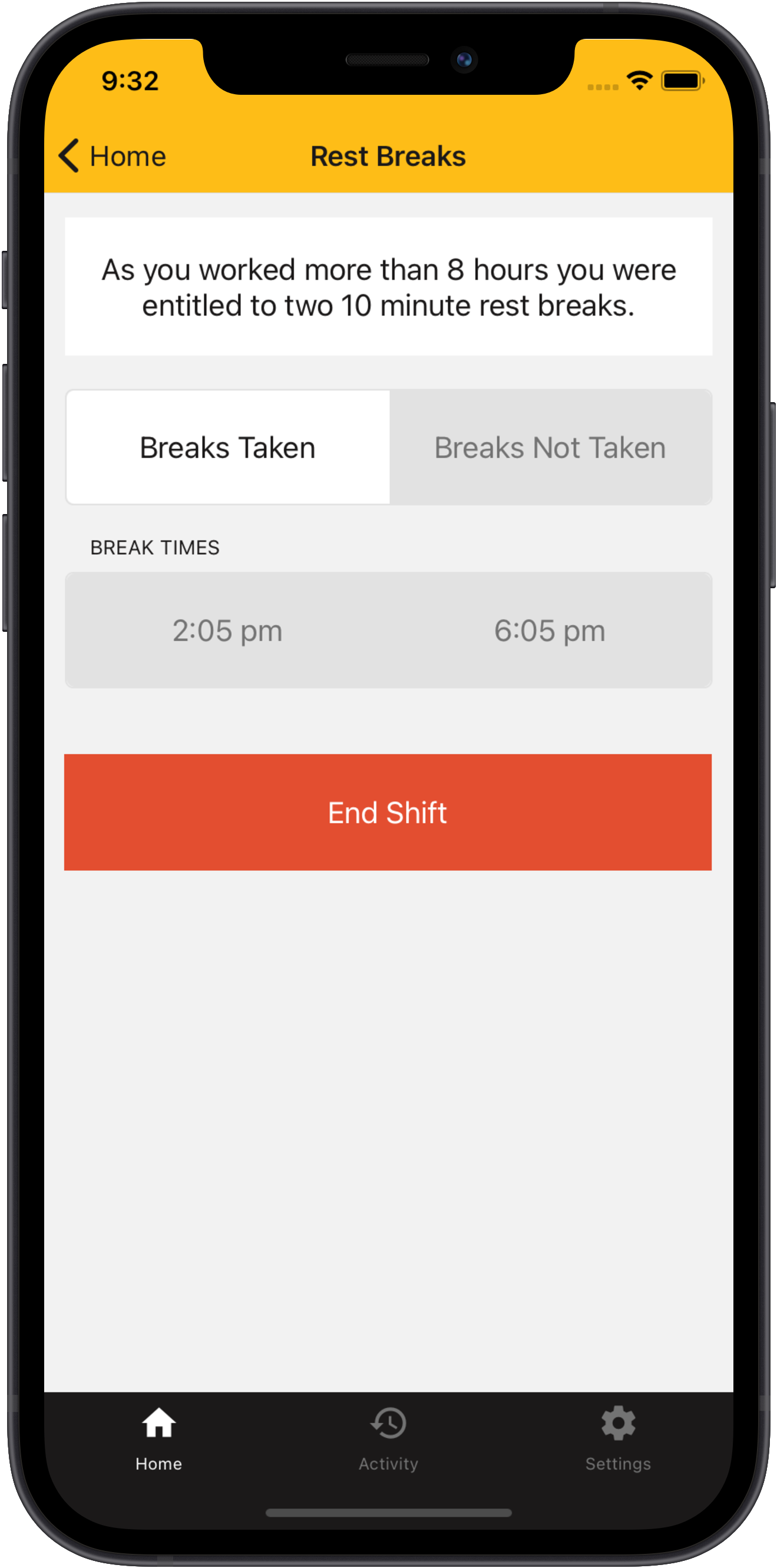
A data type of "break" is used to capture the times of paid rest breaks at the end of a shift. The "out" option should be configured with the following colon separated components:
For example:
out=End Shift:break:true:10:4:2:8:6
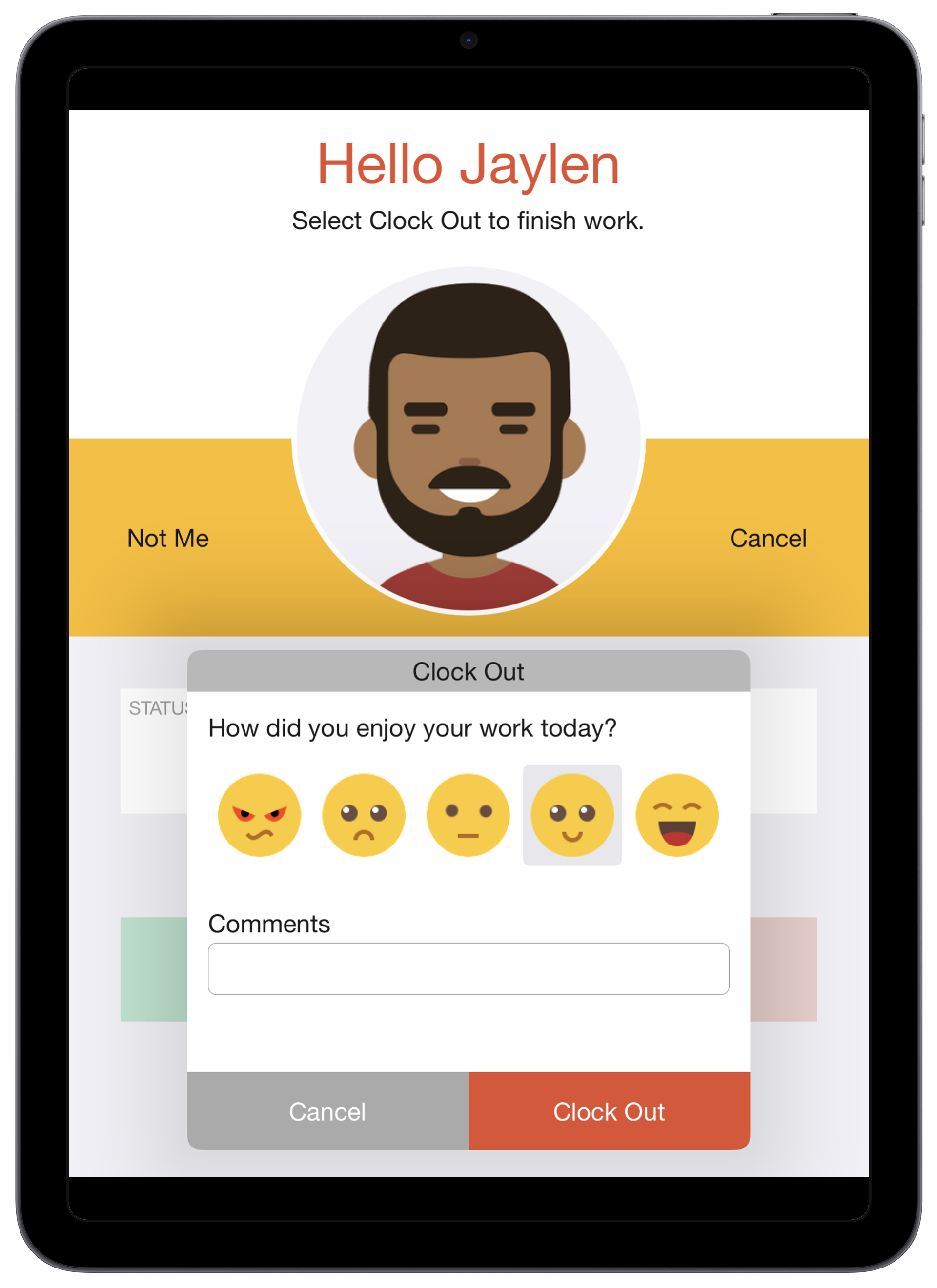
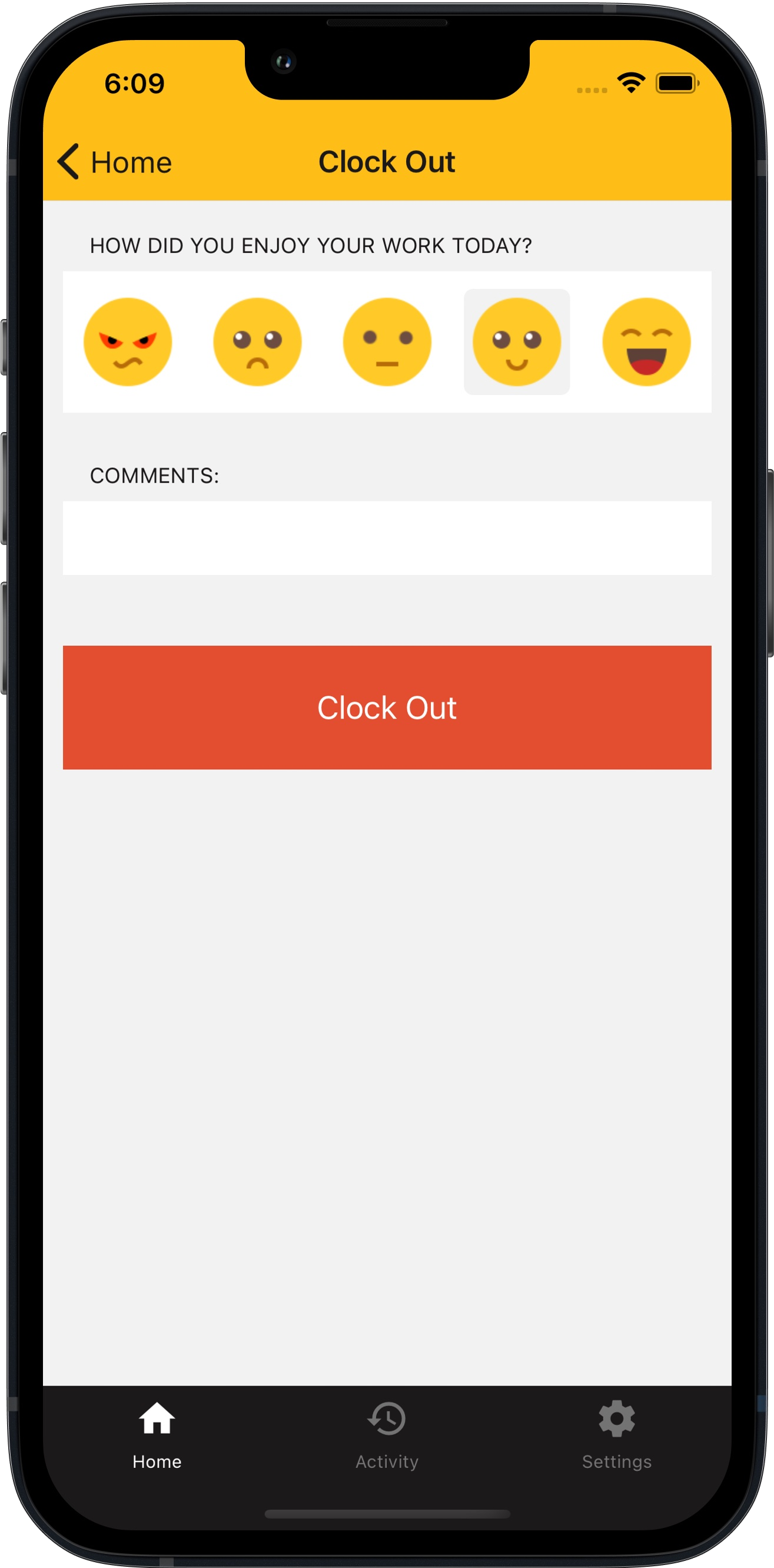
A data type of "sentiment" is used to capture employee sentiment at the end of a shift. The "out" option should be configured with the following colon separated components:
For example:
out=Clock Out:sentiment:Clock Out:negative
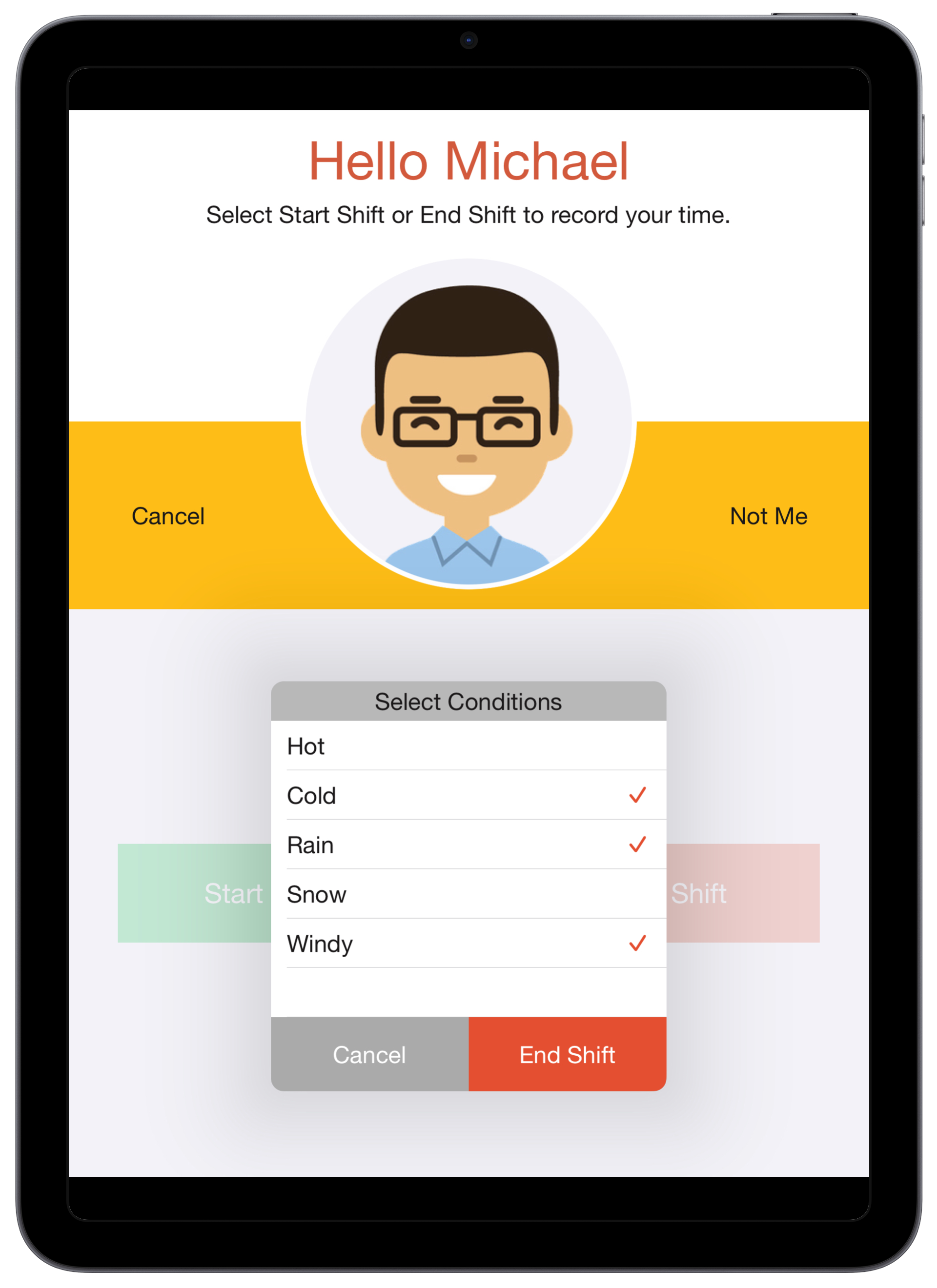
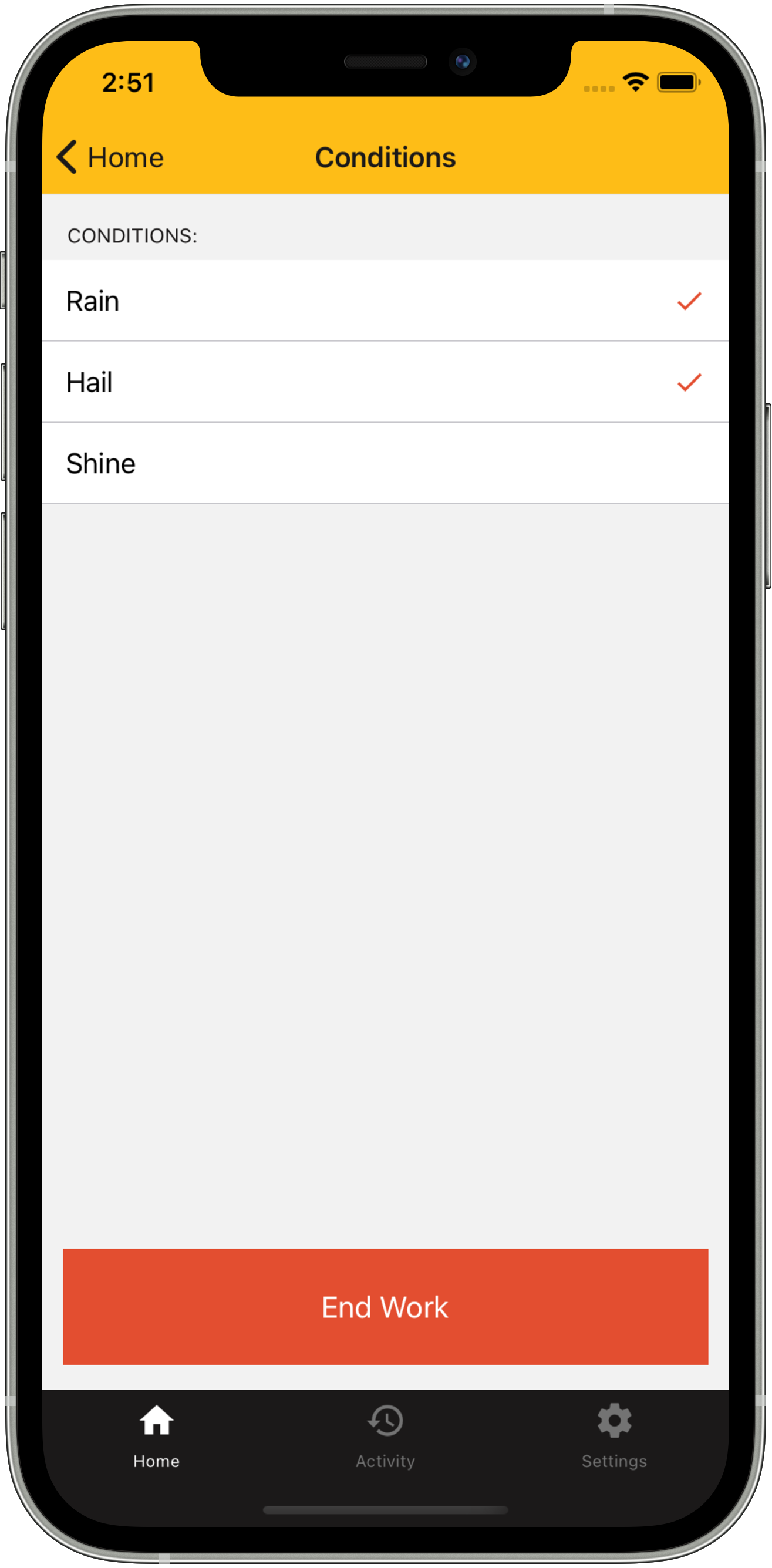
A data type of "multi" is used to capture multiple selections from a list, such as shift conditions which drive additional payments. The "in" or "out" option should be configured with the following colon separated components:
For example:
out=Finish:multi:Conditions:Hot;Cold;Rain; Snow;Windy:1
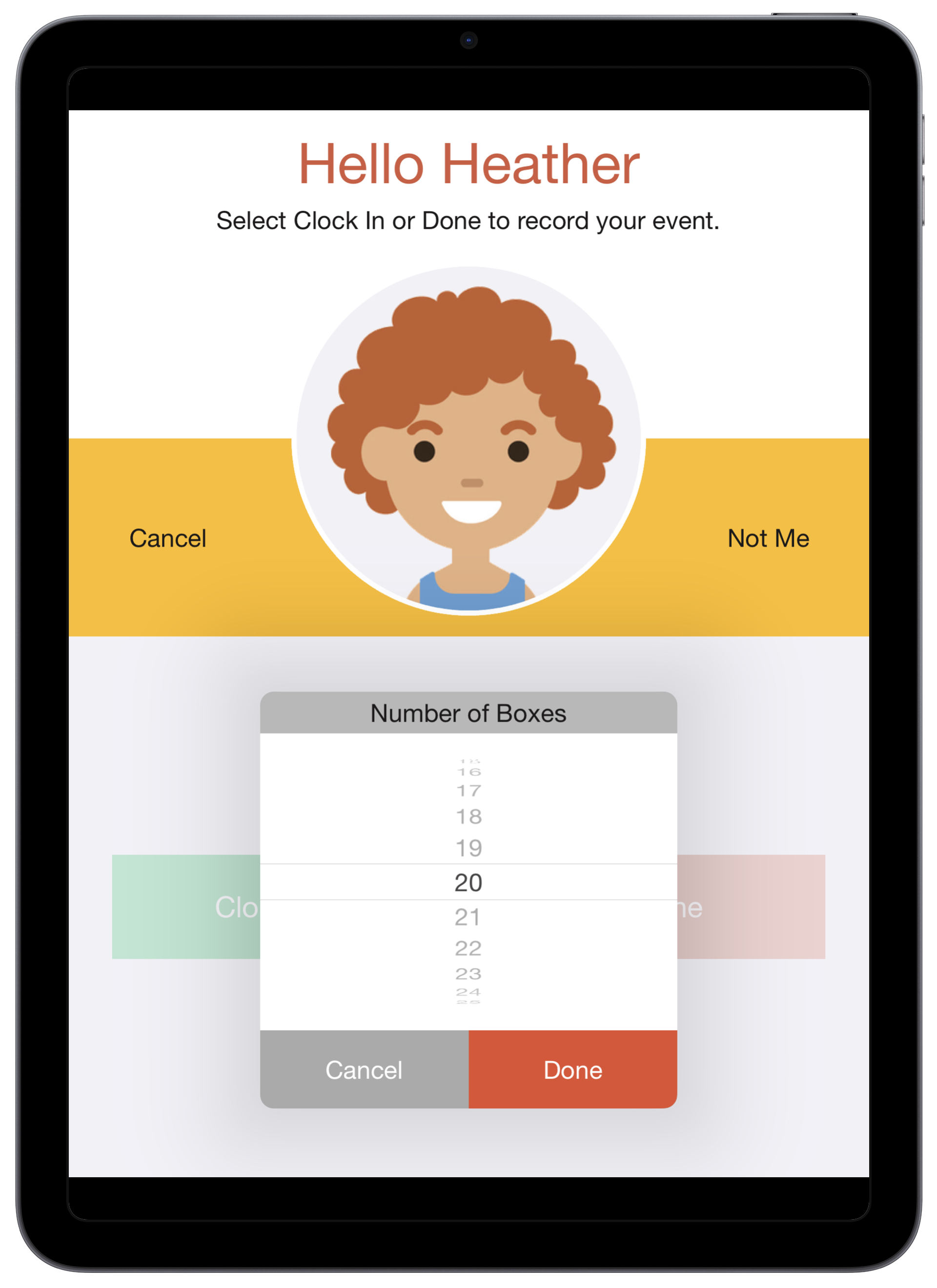
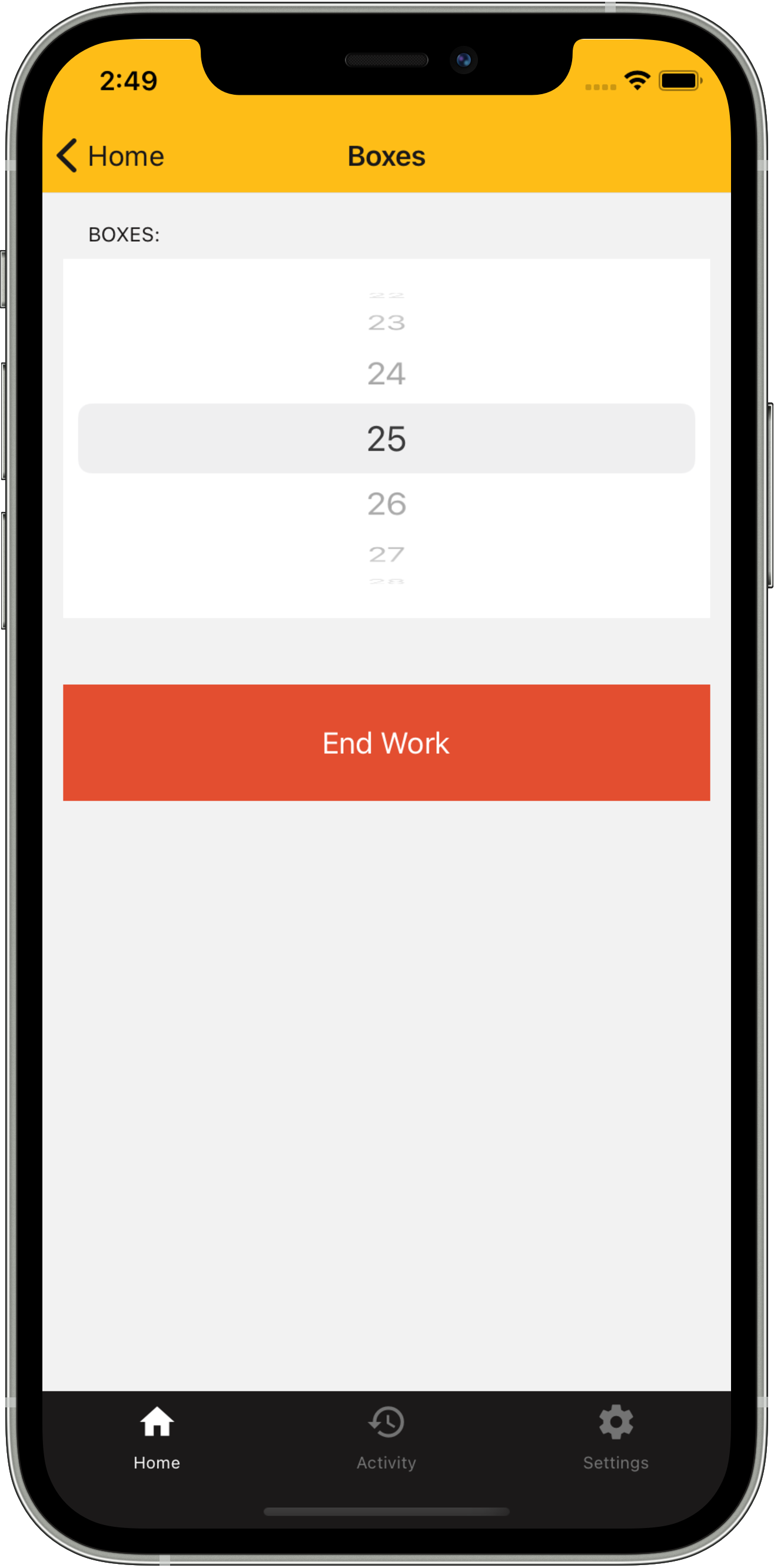
A data type of "range" is used to capture a numeric value, such as the number of boxes packed during a shift, to drive piecework payments. The "out" option should be configured with the following colon separated components:
For example:
out=Done:range:Boxes:1:100:1:20
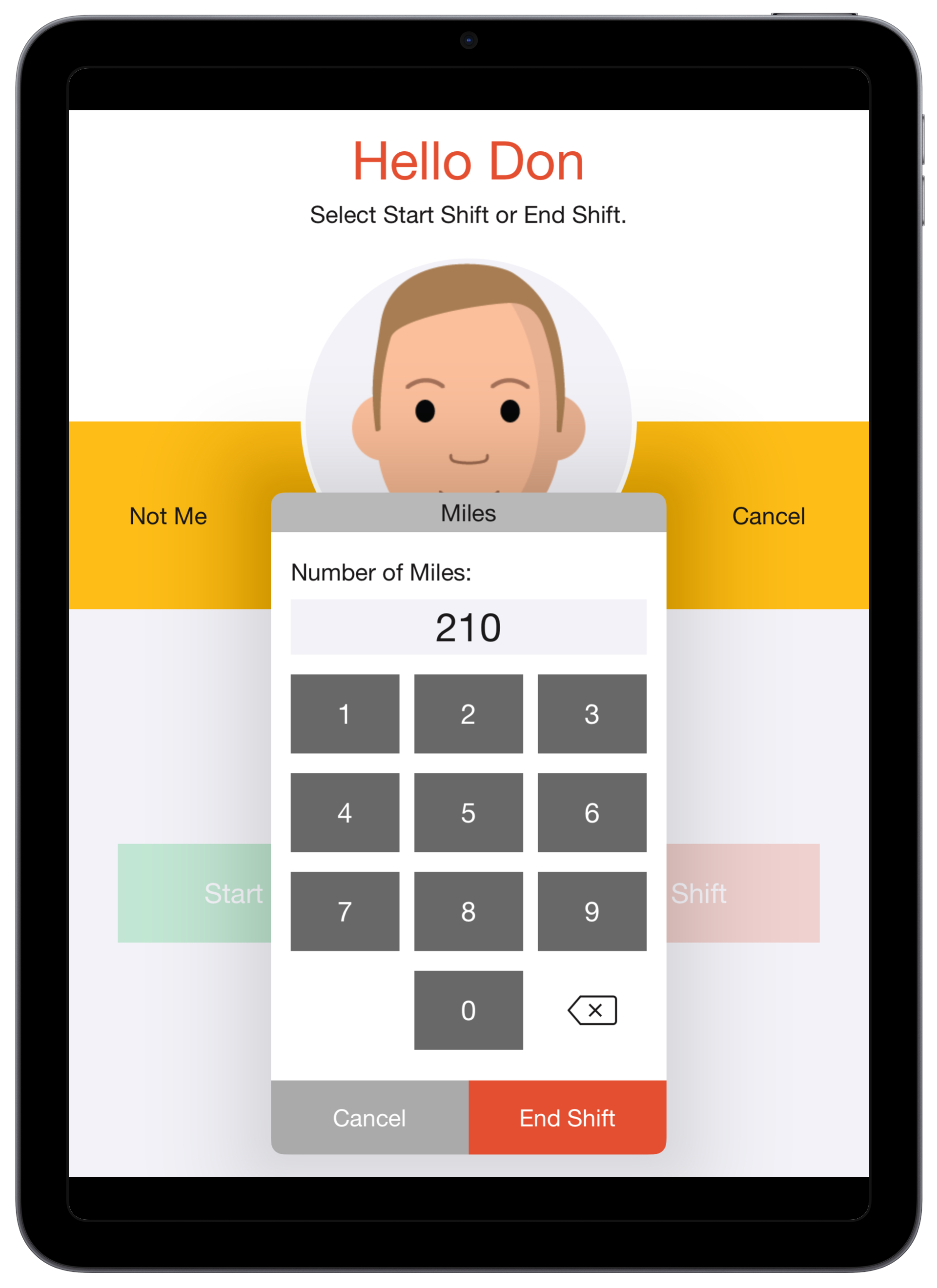
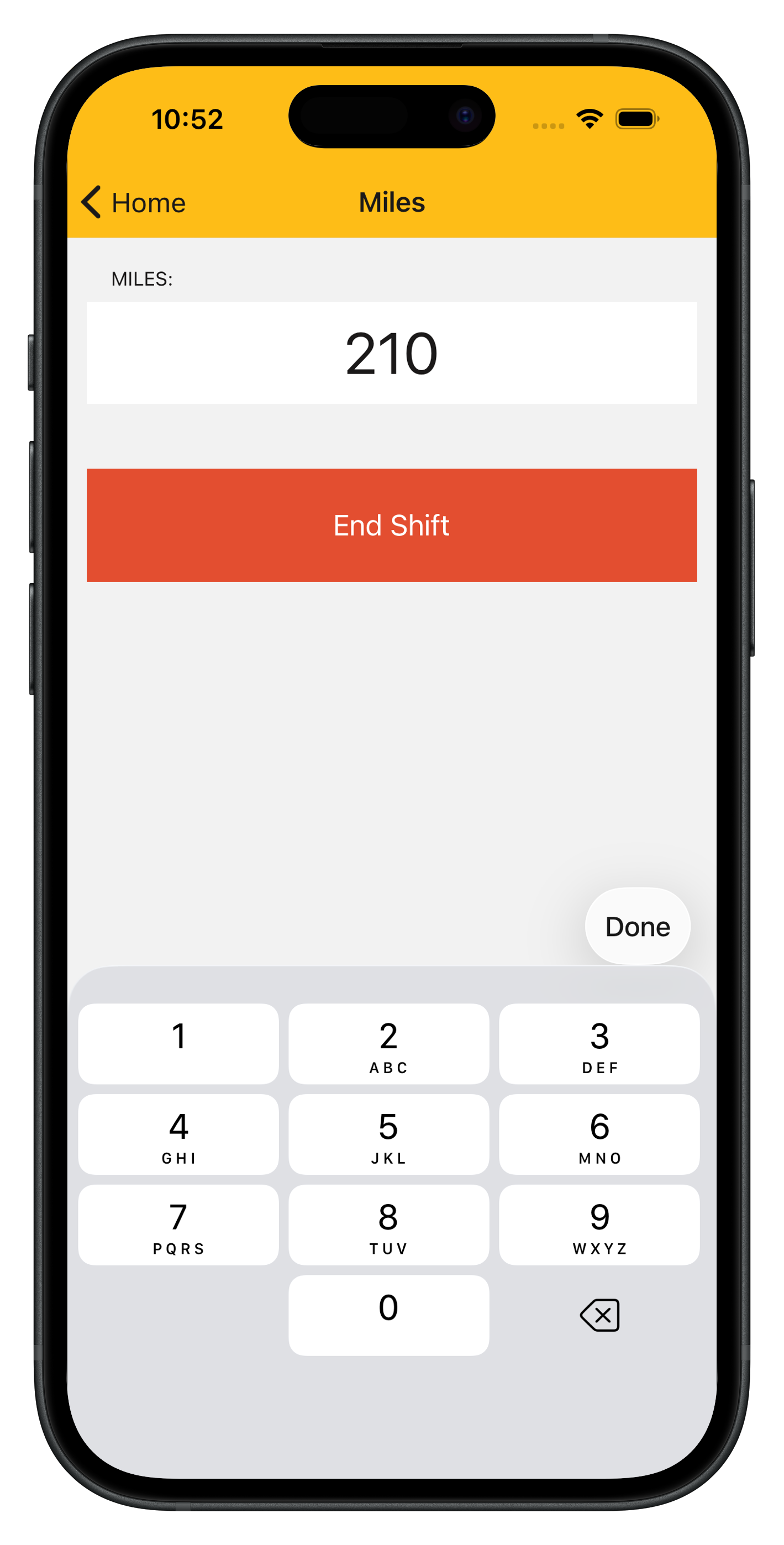
A data type of "number" is used to capture a numeric amount, such as the number of miles travelled during a shift, to drive allowances. The "in" or "out" option should be configured with the following colon separated components:
Validation rules can be expressed as either:
For example, to capture the number of miles travelled during a shift, use:
out=End Shift:number:Miles:0:10
And to capture 4 to 6 character job numbers using a barcode gun, validated against a global list of job numbers, use:
in=Start Job:number:Job Number:4:6:$1
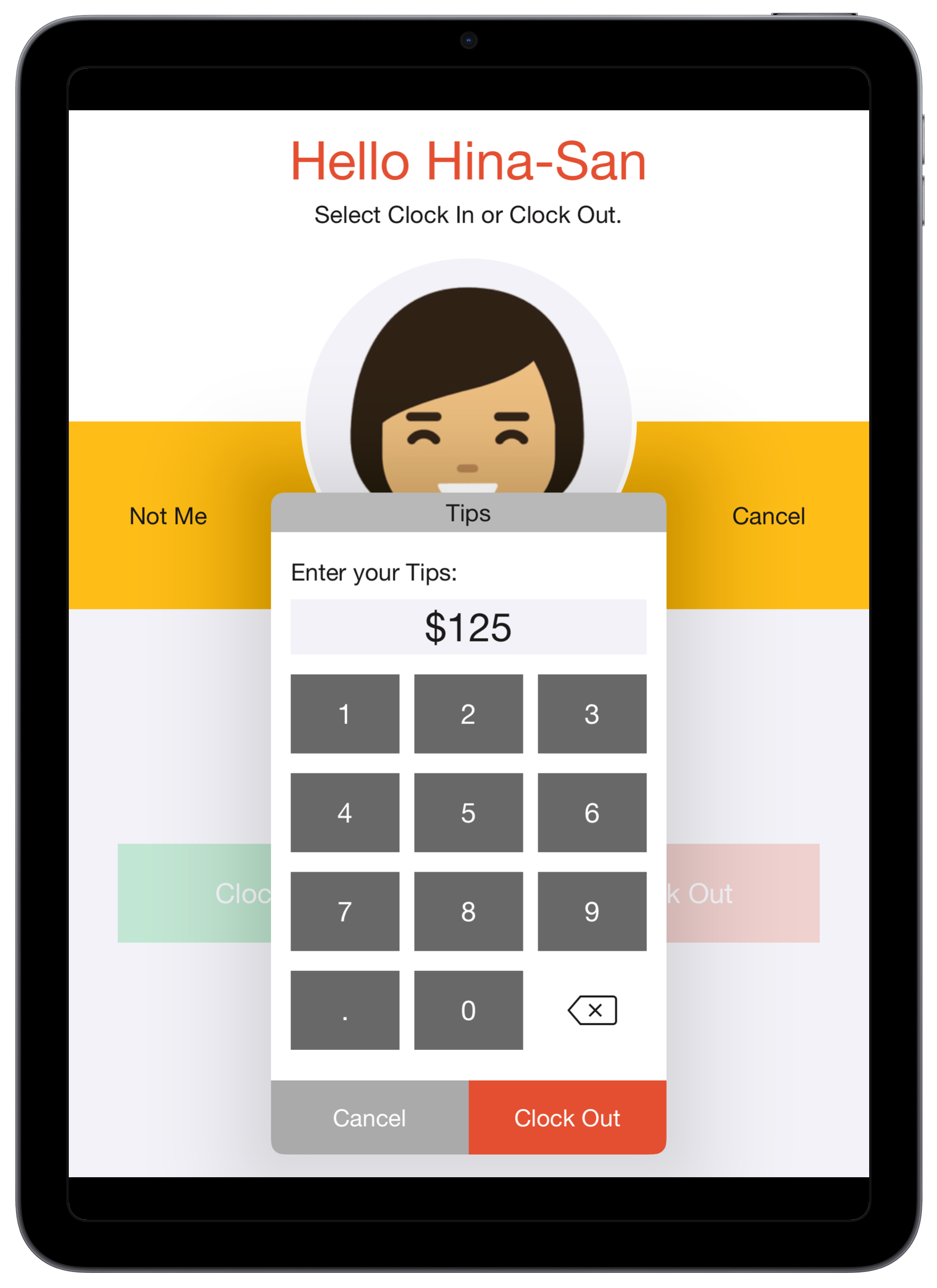
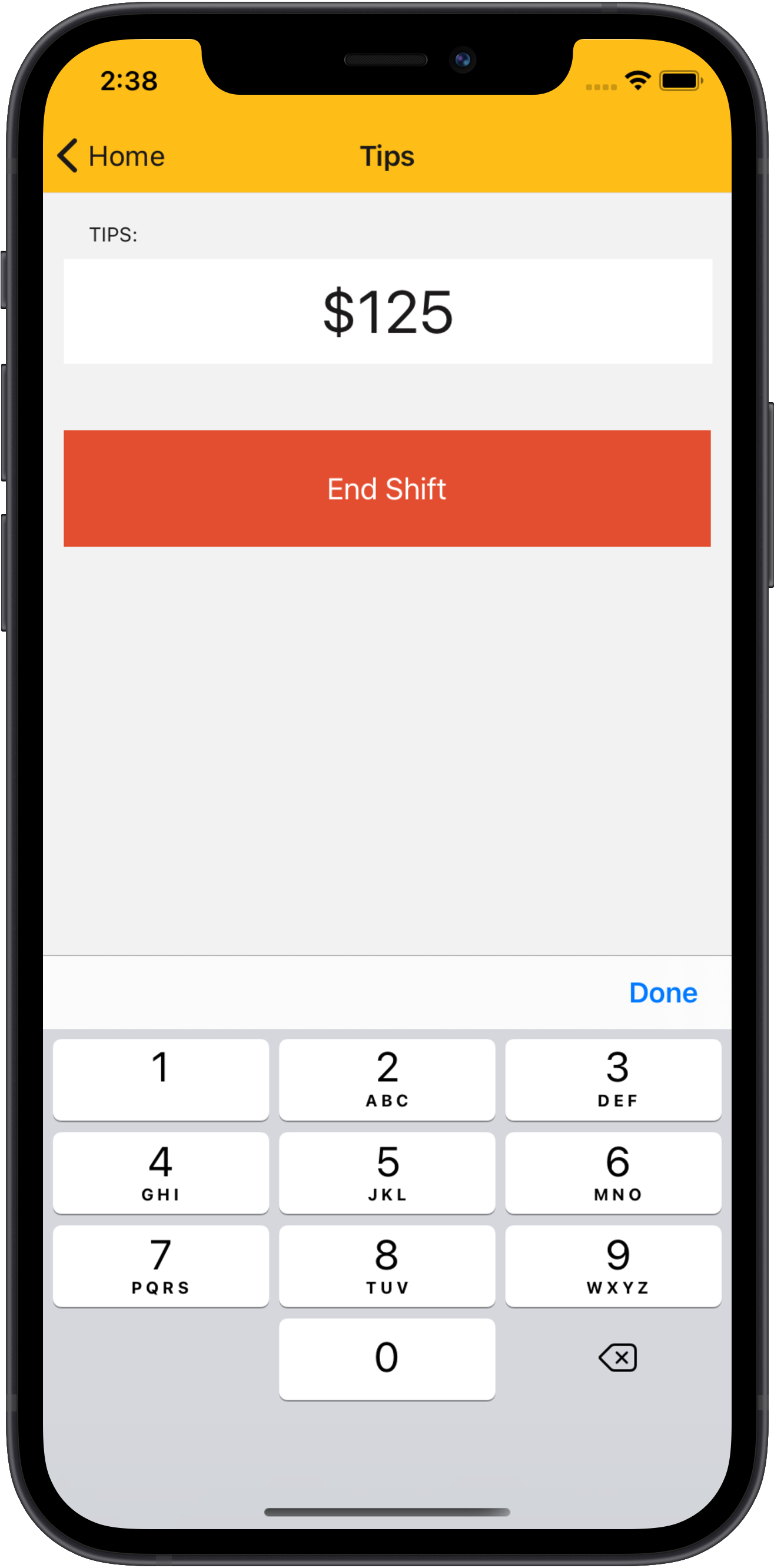
A data type of "dollar" is used to capture a dollar amount, such as tips, at the end of a shift. The "out" option should be configured with the following colon separated components:
For example:
out=Clock Out:dollar:Tips:0:10:true